What a tablet can do in VR
1Cheriton School of Computer Science, University of Waterloo · 2University of Waterloo
Conference paper · CHI '19: ACM Conference on Human Factors in Computing Systems, Glasgow, Scotland, UK
Quick facts
A multi-touch tablet is precise, tactile, and familiar. Track it in 3D and it also becomes a pointer, a viewport, and a knife. We mapped out how a tracked tablet and bare-hand gestures can work together in VR, and built a 3D modeling vocabulary to test the idea. Overall, our work contributes:
- A formative study in which 10 participants acted out 3D modeling tasks with a tablet, giving seven observations about how people expect a tablet to work in VR.
- A design space of eleven dimensions for using a multi-touch tablet in VR, such as physical vs. non-physical, direct vs. indirect, and discrete vs. continuous.
- An example interaction vocabulary for 3D solid modeling (for example, two-finger drag to translate an object, five-finger drag to navigate, and swipe-in to delete), implemented in a proof-of-concept system.
- A user evaluation in which 6 participants replicated a target model and built their own, validating the approach.
Abstract
Complex virtual reality (VR) tasks, like 3D solid modelling, are challenging with standard input controllers. We propose exploiting the affordances and input capabilities when using a 3D-tracked multi-touch tablet in an immersive VR environment. Observations gained during semi-structured interviews with general users, and those experienced with 3D software, are used to define a set of design dimensions and guidelines. These are used to develop a vocabulary of interaction techniques to demonstrate how a tablet’s precise touch input capability, physical shape, metaphorical associations, and natural compatibility with barehand mid-air input can be used in VR. For example, transforming objects with touch input, “cutting” objects by using the tablet as a physical “knife”, navigating in 3D by using the tablet as a viewport, and triggering commands by interleaving bare-hand input around the tablet. Key aspects of the vocabulary are evaluated with users, with results validating the approach.
The idea: one tablet, three kinds of input
VR input is hard to make precise: there is little tactile feedback, and mid-air drawing is inaccurate. A tablet’s touchscreen is precise and gives you a surface to press on. Once the tablet is tracked in 3D and rendered in VR, its position and orientation become input too, and the hands holding it can still gesture in mid-air. We combine all three.
Pairing the channels lets each do what it is good at. Coarse actions, like grabbing a nearby object, happen in mid-air, while fine control, like rotating it by a few degrees, happens on the touchscreen. Pointing at distant objects uses the tablet’s ray instead of walking over to them.
Formative study
Participants. Ten people (7 men, 3 women, ages 22–26), including architecture and mechanical engineering students experienced with software like Revit, Fusion360, SketchUp, and SolidWorks. Five had used VR before.
Procedure. Without a headset, each participant held a tablet that was switched off, with cardboard cubes placed around them, some within reach and some beyond. They acted out 3D modeling tasks (creating, selecting, transforming, modifying, and annotating objects) and explained their ideas while thinking aloud. We analyzed the notes with affinity diagramming.
Observations. Seven patterns shaped the design space:
- Coarse in mid-air, fine on the tablet. “I’d grab an object and then use the tablet to rotate it.” (P3)
- Reach for near objects, point at far ones. Participants grabbed objects within arm’s reach, but wanted to select distant ones from the tablet, for example through a bird’s-eye view or a raycast.
- Tablet as interface. Most tasks started with a tap on a menu button on the tablet.
- Tablet as tool. A few participants used the tablet to define a slicing plane, or sliced through an object like a knife, a behavior borrowed from the game Fruit Ninja.
- Haptics for continuous control. Mid-air gestures seemed suited to discrete actions, and touch to continuous manipulation, such as pinch-to-zoom on the tablet to scale an object.
- No occlusion. Manipulating through the tablet keeps the hands from hiding the object: “[…] and my hands will not even occlude the object.” (P1)
- Sitting. All but one participant preferred to sit.
Design space
From these observations and prior work, we defined eleven design dimensions. Each one is a question a designer answers when assigning roles to the tablet and the hands:
- D1. Tablet vs. mid-air properties: which tasks need high precision, tactile feedback, or a familiar UI (see the table below).
- D2. Non-dominant vs. dominant hand: which hand holds the tablet and which acts.
- D3. Sit vs. stand: which tasks suit which posture.
- D4. Attention to device vs. scene: where the user should be looking.
- D5. Unimodal vs. multimodal: touch only, or touch combined with tablet orientation or mid-air gestures.
- D6. Unimanual vs. bimanual: one hand or two.
- D7. Environment reality vs. virtuality: the tablet as a viewport into the virtual world, or a portal back to reality.
- D8. Interleaved vs. simultaneous: using touch and mid-air input one after the other, or together.
- D9. Discrete vs. continuous input: taps and gestures, or continuous manipulation.
- D10. Direct vs. indirect: acting on the object itself, or through the tablet.
- D11. Physical vs. non-physical: whether interactions follow real-world physics; for example, the tablet can pierce an object to select it.
| Property | Tablet touchscreen | Mid-air tablet | Mid-air hand |
|---|---|---|---|
| Precision | High | Low | Low |
| Input space | 2D (3DOF) | 3D (6DOF) | 3D (high DOF) |
| Tactile feedback | Yes | No | No |
| UI | Familiar (WIMP) | No (tilt) | No (gesture) |
| Midas touch | No | Yes | Yes |
System
Hardware. The prototype runs in Unity 5.6.1 with an HTC Vive headset (1080 × 1200 px per eye, 90 Hz, 110° field of view). A LEAP Motion sensor on the front of the headset tracks the hands. The tablet is a 9.7” Samsung Galaxy Tab S3 (429 g), tracked by an HTC Lighthouse tracker mounted on a light aluminum bar that extends about 4.5 cm beyond one corner, so the tablet can be held in portrait or landscape, in one or two hands, and flipped over. Touch events stream to the server over WiFi.
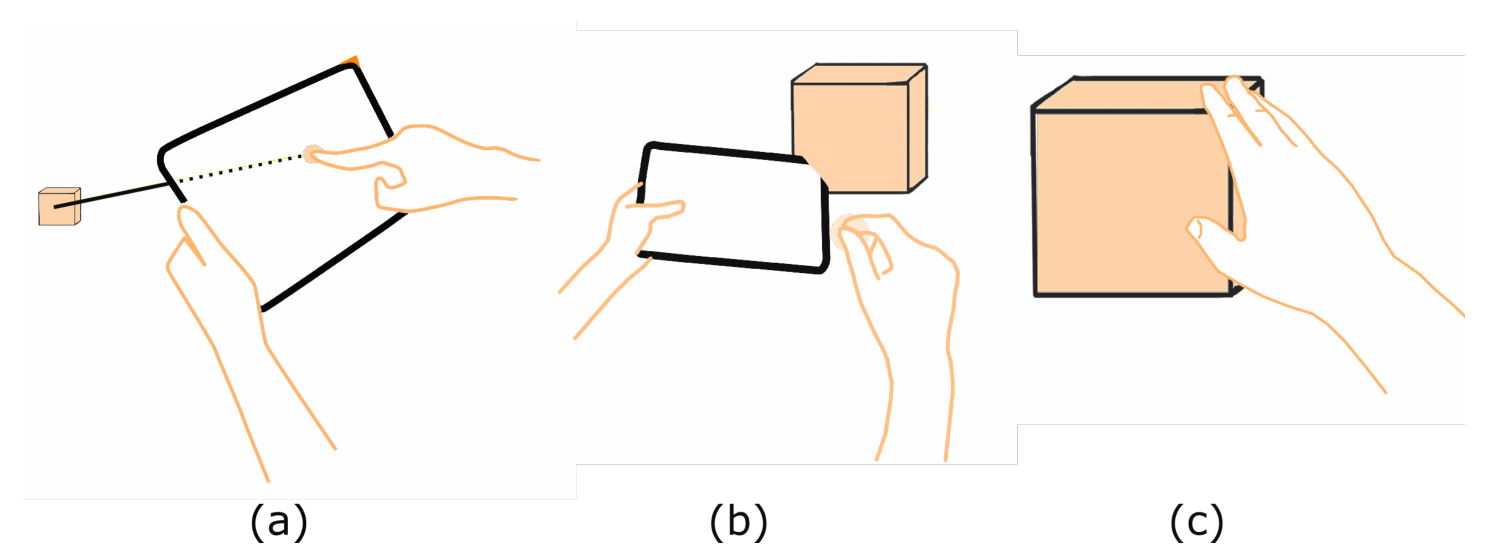
Tablet viewport. The tablet’s screen shows a view of the 3D scene, and a ray extends from the center of its back. The viewport is hidden while you transform or slice an object, so you focus on the object itself.
Vocabulary. We built a set of interactions for 3D solid modeling, each tied to the observations and dimensions above:
- Create. Flip the tablet and pick an object from a list on its back. Then tap the screen to place it where the ray hits the floor grid, or pinch in mid-air to create it 50 cm in front of you. A swipe-in over the screen exits creation mode.
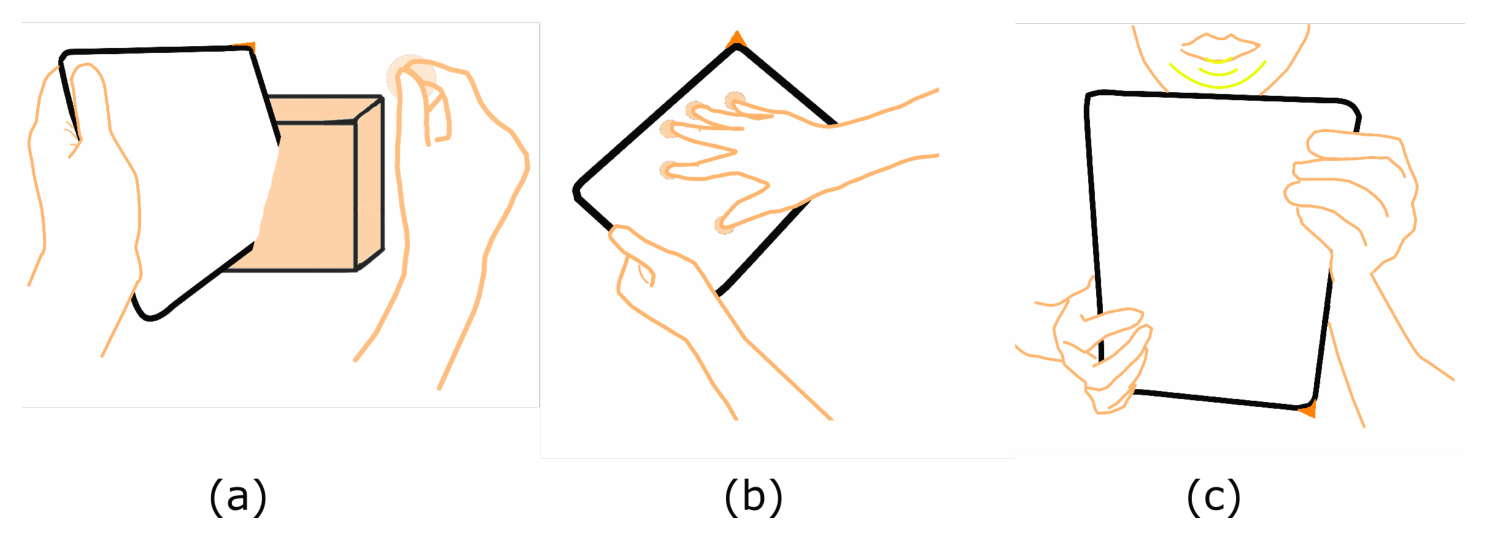
- Select. Use the ray and a tap for distant objects, pierce an object with the highlighted tablet corner and pinch, or tap an object’s face. A knuckle posture adds objects to a multi-selection.
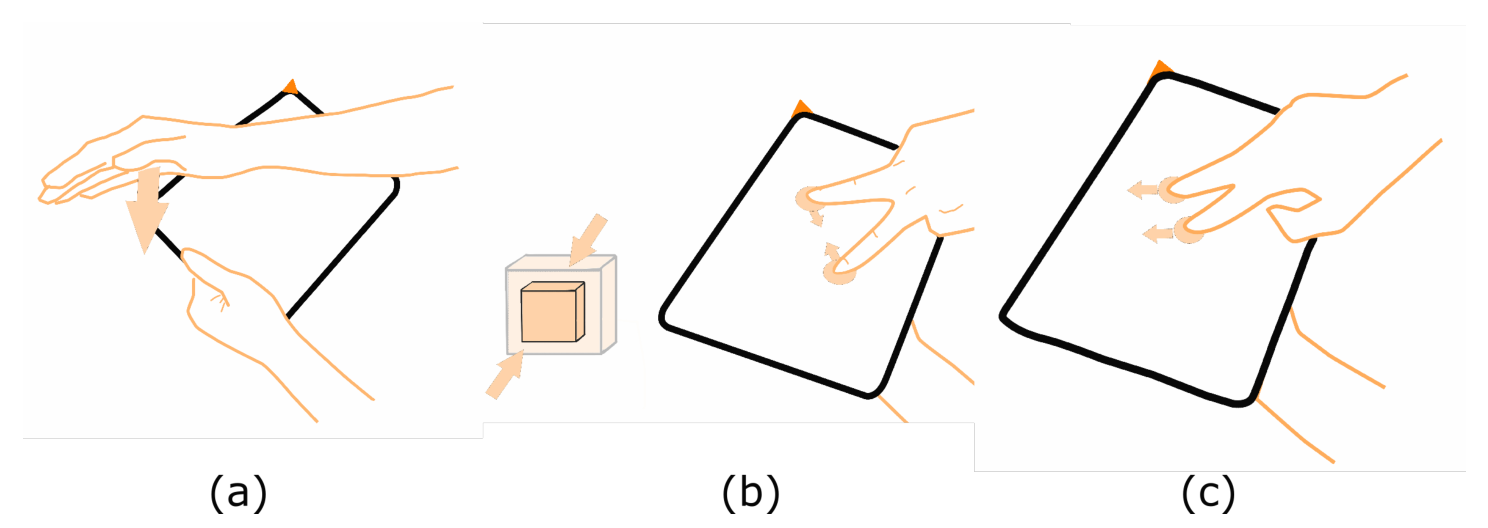
- Delete. Select an object and swipe in just over the tablet’s surface.
- Rotate, scale, and translate. Orient the tablet to fix an axis and plane, then use two fingers on the screen. All three transforms can happen at once.
- Slice and extrude. Hold the tablet through an object and pinch to cut it along the tablet’s plane. To extrude, orient the tablet to pick a face, then drag two fingers horizontally.
- Annotate. Place a text object like any other object; when it is selected, a keyboard appears on the tablet.
- Navigate. Put five fingers on the screen. The world fades to black except for the tablet’s viewport, which makes motion sickness less likely. Rotate your wrist to turn, drag to move along the tablet’s plane, and use a five-finger zoom gesture to move forward or back in the direction the tablet points. Lifting your fingers fades the world back in over 3 seconds.
- Help and system menu. Hold the tablet up to your chin with both hands and speak to ask for help, or hold it in your dominant hand to open a system menu.
User evaluation
Participants. Six people (all men, ages 19–34), experienced with Fusion360, SolidWorks, or other 3D modeling tools.
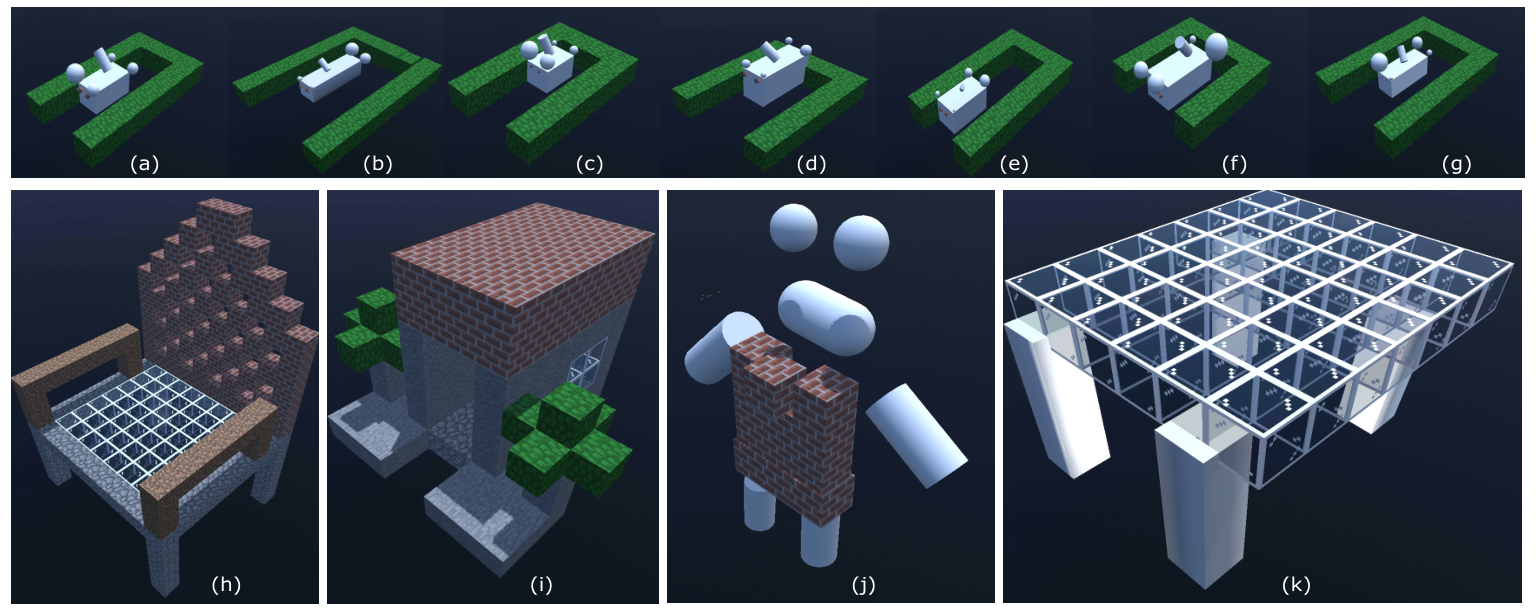
Procedure. About 90 minutes in three parts. In training (20–30 minutes), the experimenter demonstrated five main features (create and delete, select and deselect, transform, navigate, and modify), and participants practiced until confident. In the replication task (20–30 minutes), they rebuilt a target model by creating and extruding a cube, adding four spheres of decreasing size, a rotated cylinder, two scaled-down and rotated brick blocks, and a fence of grass blocks. In freeform exploration (20–30 minutes), they built whatever they liked.
Measures. A post-experiment questionnaire about each feature, plus observations and comments.
What do we learn?
1. Everyone rebuilt the target model in time
All six participants replicated the target model within the time limit. In freeform exploration, they built a chair, an android, a tree, houses, and a glass table. None reported discomfort, and all but one preferred to sit throughout. P5 noted, “Most of the features, gestures were very intuitive and easy to follow”.
2. Creating, deleting, selecting, and extruding felt natural
Creation, deletion, and shape modification were intuitive. Most participants learned selection quickly, although a few preferred the raycast to the corner pointer, which P1 found “weird”. All six found orienting the tablet to pick a face for extrusion useful. One participant (P2) sometimes created objects by accident while gripping the tablet.
3. Doing several things at once was harder
Multi-selection with the knuckle posture was hard for four of the six participants, who found rotating the wrist tiresome. Transforms were easy overall, but because the distance between the two fingers set the object’s scale, keeping it constant while rotating was difficult. Navigation was hard for all but one participant, and P1 felt its directions were backwards. Four participants struggled with the menu on the back of the tablet, mainly because of flipping it over.
4. The design space suggests the fixes
The same dimensions point to alternatives. For accidental touches, ignore touches near the grip or move the trigger to a mid-air pinch (D1), and discard non-dominant-hand touches near the tablet (D2). For multi-selection, let a non-dominant-hand touch switch between single and multiple selection (D6). For navigation, separate the degrees of freedom, or tap a point on a map on the tablet to teleport there (D4, D9). For the menu, move it to the front of the tablet, where touch is precise and does not depend on 3D tracking (D4, D6).
Limitations
The prototype’s tracking set some limits. LEAP hand tracking was not robust to infrared reflections near the tablet, so we avoided in-air gestures close to it and used touch instead. The tablet’s tracker sometimes glitched (though this did not hinder usability), and interacting through 3D tablet tracking, as with the back-of-tablet menu, was far less reliable than touch on the front. We implemented only a small subset of possible interactions, for one application (3D solid modeling), and a comparison of a more mature TabletInVR system against standard controllers is still needed.
Publication
Hemant Bhaskar Surale, Aakar Gupta, Mark Hancock, and Daniel Vogel. 2019. TabletInVR: Exploring the Design Space for Using a Multi-Touch Tablet in Virtual Reality. In Proceedings of the 2019 CHI Conference on Human Factors in Computing Systems (CHI ‘19), Glasgow, Scotland, UK. ACM, 13 pages. https://doi.org/10.1145/3290605.3300243
BibTeX
@inproceedings{surale2019tabletinvr,
  title     = {TabletInVR: Exploring the Design Space for Using a Multi-Touch Tablet in Virtual Reality},
  author    = {Surale, Hemant Bhaskar and Gupta, Aakar and Hancock, Mark and Vogel, Daniel},
  booktitle = {Proceedings of the 2019 CHI Conference on Human Factors in Computing Systems},
  series    = {CHI '19},
  location  = {Glasgow, Scotland, UK},
  pages     = {1--13},
  year      = {2019},
  publisher = {ACM},
  doi       = {10.1145/3290605.3300243}
}
Contact
Questions? Feel free to contact:
- Hemant Bhaskar Surale, Cheriton School of Computer Science, University of Waterloo: hemant.surale [at] gmail.com
Figures are from the paper (© 2019 ACM) and are reproduced here by the authors.